Quick protection plan. This independent guide explains Google Account security tools. It is not affiliated with Google. Product screens and settings can change, so use the official links in the sources section for the latest instructions.
Reviewed on June 11, 2026. A secure Google Account depends on more than a strong password. Recovery details, passkeys, signed-in devices, third-party connections, phishing awareness, and the ability to respond quickly all matter.
Google does not use one public product formally named “Google Account Center.” The main control page is Google Account, and its security tools include Security Checkup, device review, recent security activity, recovery options, passkeys, two-step verification, and third-party connection controls.
Start with Google Security Checkup
Security Checkup is the most useful starting point because it gathers several risk checks in one place. Review warnings instead of clicking through them automatically. A warning can point to a weak recovery setup, an unfamiliar device, a risky third-party connection, or another setting that needs attention.
- Confirm the recovery phone number and recovery email belong to you and are still accessible.
- Review devices and sessions. Sign out of devices you sold, lost, shared, or no longer recognize.
- Check recent security activity for unfamiliar logins or account changes.
- Review apps and services connected through “Sign in with Google” or other account permissions.
- Turn on stronger sign-in methods before an emergency happens.
Use passkeys or two-step verification
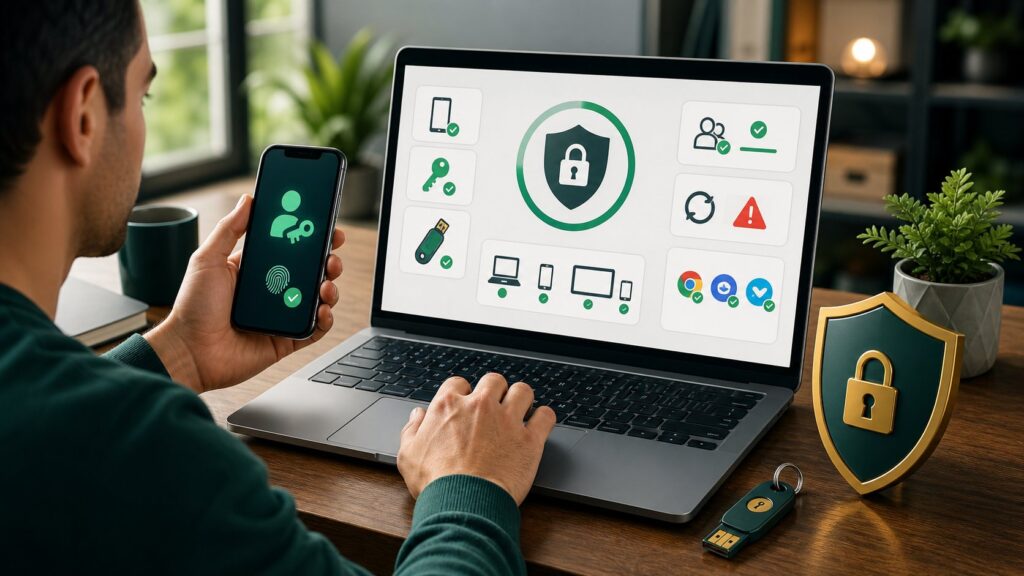
A passkey lets you sign in by unlocking a trusted device with a fingerprint, face scan, screen lock, or security key. Passkeys are designed to resist ordinary phishing because the credential is tied to the legitimate website or app. They do not remove the need to protect the device itself.
If passkeys are not practical for every device, use two-step verification. An authenticator app, Google prompt, or physical security key is generally safer than relying only on SMS. Keep at least one backup method in a secure place. Never approve an unexpected sign-in prompt just to make it disappear.
Make account recovery resilient
Recovery information is helpful only when it is current and private. Use an email address that is not locked behind the same Google Account. Keep the recovery phone number under your control. Remove addresses and numbers that belong to a former employer, an old family plan, or a device you no longer use.
Google may ask questions about familiar devices, locations, and previous passwords during recovery. Attempt recovery from a device and network you normally use when possible. Do not pay a stranger who claims to have a special recovery channel. Google warns that it does not work with account-recovery services that promise access for a fee.
Review devices and sessions
The device list can include phones, computers, tablets, smart televisions, and browser sessions. A device name may be generic, so check the approximate location, time, browser, and activity before deciding it is malicious. Sign out of anything you cannot explain. If a device was lost or stolen, also change its screen-lock credentials and use the platform’s lost-device tools.
Control third-party access
“Sign in with Google” can reduce password reuse, but it still creates a connection between your account and another service. Review those connections periodically. Remove apps you no longer use and investigate any service you do not recognize. Removing access does not necessarily delete data the third party already received, so contact that service if deletion is needed.
Be especially cautious when an app requests broad access to Gmail, Drive files, contacts, or account management. A useful app should be able to explain why each permission is necessary.
Recognize real and fake security alerts
A convincing message can copy Google’s colors and wording. Do not use a link in an unexpected email or text to investigate a warning. Open a fresh browser tab, type myaccount.google.com, and check recent security activity directly.
- Treat requests for passwords, backup codes, or one-time codes as fraudulent.
- Do not approve a sign-in prompt you did not initiate.
- Check the full sender address and destination domain, not only the display name.
- Be suspicious of urgent threats that demand immediate payment or account “verification.”
- Report phishing in Gmail and delete the message after preserving any evidence you need.
What to do after suspected compromise
- Use a trusted device to open the official account-recovery or compromised-account page.
- Change the password if Google still allows access, and do not reuse that password elsewhere.
- Sign out of unfamiliar devices and revoke suspicious third-party access.
- Check Gmail forwarding, filters, delegates, and recovery settings for unauthorized changes.
- Scan affected devices for malicious software and update the operating system and browser.
- Warn contacts if the account sent fraudulent messages.
Who should consider Advanced Protection?
Google’s Advanced Protection Program is intended for people at elevated risk of targeted attacks, such as journalists, campaign staff, activists, executives, and public figures. It applies stronger sign-in and app-access controls. The added friction is deliberate, so review the official enrollment requirements before enabling it.
Common questions
Is a passkey safer than a password?
For phishing resistance, a correctly implemented passkey is generally stronger than a password because it is bound to the legitimate service. Device security and recovery settings still matter.
Should I stay signed in on a shared computer?
No. Use a private device when possible. If you must use a shared computer, avoid saving credentials, sign out completely, and review the device list afterward.
Can Google support ask for my verification code?
A verification or backup code should be treated like a password. Do not give it to a caller, message sender, or remote-support operator.
Important terminology and 2026 corrections
Google does not publish a consumer product formally named “Google Account Center.” The official control surface is the Google Account at myaccount.google.com. Its Security section links to Security Checkup, recent security activity, signed-in devices, passkeys, two-step verification, recovery information, and third-party connections. This guide uses “Google Account settings” for that collection of controls.
Passkeys, hardware security keys, Google prompts, authenticator codes, backup codes, and SMS are different sign-in or recovery methods. Their availability depends on the account, device, organization, and administrator. A passkey is designed to resist ordinary phishing, but it does not make an unlocked or compromised device safe. Recovery information and device security remain essential.
Synced authenticator codes should not be described as automatically exposing every account. The practical risk is concentration: anyone who gains control of the Google Account and an unlocked trusted device may gain access to more recovery and authentication material. High-risk users should consider phishing-resistant passkeys or physical security keys, secure device locks, offline backup codes, and Google’s Advanced Protection Program.
Stolen browser sessions can sometimes let an attacker act as a signed-in user without re-entering the password. If compromise is suspected, use a trusted device to change the password, review recent security activity and devices, revoke suspicious connections, sign out unfamiliar sessions, remove malicious browser extensions, and scan or reset affected devices. Do not assume a password change alone cleans an infected device.
Related security guides
Official Google sources
- Make your Google Account more secure
- Google Security Checkup
- Sign in with a passkey instead of a password
- Secure a hacked or compromised Google Account
- See devices with account access
- Manage third-party connections
- Google Advanced Protection Program
Written and prepared by Kshitij Gupta.