
2026 update: Meta announced on April 23, 2026 that Accounts Center will gradually become an updated Meta Account over the following year. Some readers will still see Accounts Center. The newer version can manage more login and security settings centrally; WhatsApp remains optional. Follow the labels and scope shown in your account. Read Meta’s announcement.
What is the Accounts Center? | How One-Tap Login and Accounts Center Operates? | Security Risks You Should Know About | How to Check and Unlink Accounts in the Accounts Center? | How to Secure Your Linked Accounts: Best Practices | How to Find Out If Another Person Has Linked Accounts to Yours? | How to Monitor and React to Suspicious Logins? | Enable Login Alerts | Conclusion
Meta Accounts Center is the settings area for managing connected experiences across supported Meta accounts, including Facebook and Instagram. Use it to review linked accounts, cross-account login, contact details and security settings. Linking accounts is a choice about connected features; check which features are enabled rather than assuming every account shares a login.
In the following article, we detail how the Accounts Center functions, what dangers are associated with its use, and most importantly, how to manage your connected accounts to remain safe.
What is the Accounts Center ?
Accounts Center manages settings and connected experiences across supported Meta technologies. The options depend on the accounts you add and the version available to you. Depending on those settings, you can:
- Switch between accounts effortlessly
- Publish on multiple platforms
- Sync personal information and preferences
- Handle login credentials, security options, ad settings, and payment details
The feature can be found in the “Settings and privacy” area via the Instagram or Facebook apps.
How One-Tap Login and Accounts Center Operates?
If you add multiple accounts to the Accounts Center :
- Where available, the Logging in with accounts setting lets you control whether one account can log in to another. Review this permission separately from cross-posting and profile syncing.
- If you had previously logged in on the same device, Meta can automatically suggest logging into connected accounts.
- When accounts are combined, logging into one might trigger the ability to access others for convenience—but also expose them if not secured.
Security Risks You Should Know About
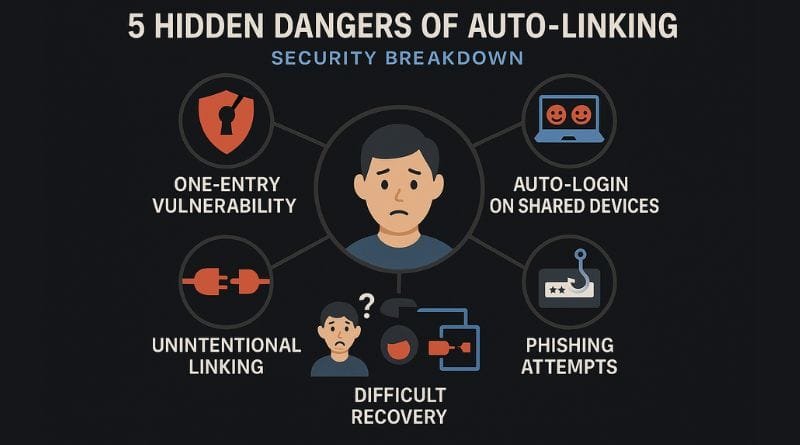
Although the Accounts Center is designed to make account management easier, it can pose security threats if the user does not know how it works. The following are the most critical threats:
1. Access to All Accounts Through a Single Entry Point
If an attacker gets access to only one of your connected accounts (like Instagram), then possibly your Facebook or your Messenger accounts can be accessed by them without having to log in first.
2. Auto-Login on Shared Devices
Logging in on a public or shared device and failing to log out means another user can potentially enter all accounts associated with it, and not just the original.
3. Unintentional Linking
A linking prompt can be easy to overlook. Review the accounts listed and the connected experiences you enabled; do not assume that every linked profile shares the same permissions.
4. Difficult Account Recovery
If all of your accounts have the same login path and your access to one is lost (such as from a lost phone number or email address), regaining access to all accounts can be more difficult.
5. Phishing Risk
Users can be tricked by phishing attempts in the form of Meta login requests for “unified access.” If you don’t know about the Accounts Center , then it’s more likely that you will click on false login requests and risk all accounts associated with them.
How to Check and Unlink Accounts in the Accounts Center?
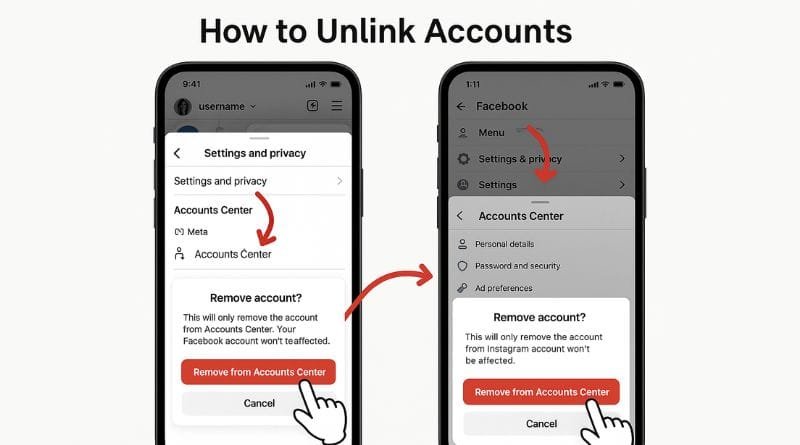
If you’re not certain of which accounts are linked or wish to disconnect them for extra security, do the following:
On Instagram:
- Launch the Instagram application
- Tap your profile icon
- Press the menu icon (three lines) in the top right
- Choose Settings and privacy
- Scroll down and touch Accounts Center
- Click on Accounts beneath your name
- Choose the account that you want to unlink
- Click Remove from Accounts Center and confirm
Removing an account from Accounts Center disconnects supported experiences; it is not the same as permanently deleting the Facebook or Instagram account. Before confirming, read the warning and make sure you can sign in to the account independently. Options may differ during the Meta Account rollout.
On Facebook:
- Open the Facebook application
- Press the menu icon
- Navigate to Settings & Privacy > Settings
- Click Accounts Center
- Choose Accounts
- Select the account you wish to unlink
- Tap Remove from Accounts Center and confirm
- How to Secure Your Linked Accounts
Note: If your accounts are linked, however, then you should also do all you can to lower your risk of unauthorized access.
How to Secure Your Linked Accounts: Best Practices
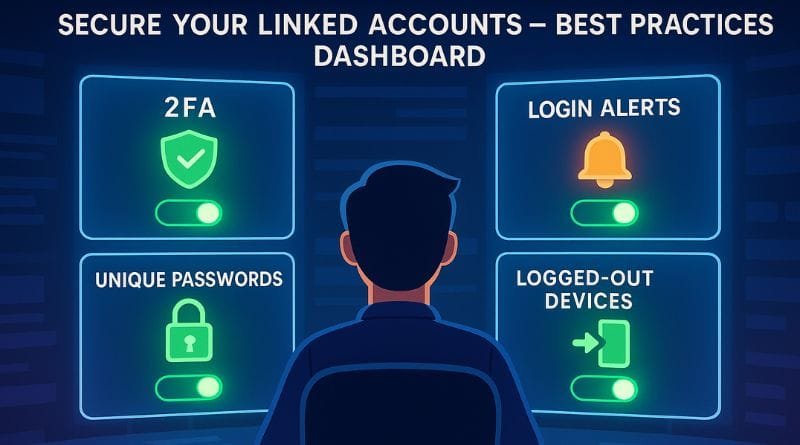
a. Enable Two-Factor Authentication (2FA)
This introduces an additional step—a text message or application code—during logging in.
Instagram:
Proceed to Settings and privacy > Accounts Center > Password and security > Two-factor authentication
Select the Instagram account and your preferred option (SMS or authentication app)
Facebook:
Open Accounts Center from Facebook settings, then look for Password and security > Two-factor authentication. Select the relevant account and follow the options shown.
Complete setup and store any recovery codes somewhere you can access if you lose your phone.
b. Configure Login Alerts
Receive notifications if your account has been logged in from an unfamiliar device.
Instagram:
Navigate to Settings > Security > Login Activity
Facebook:
Navigate to Settings > Security and Login > Get alerts about unrecognized logins
c. Use One-of-a-Kind Passwords for Each Platform
Use a unique password for each separate account and a password manager to store it. If you opt into the updated Meta Account’s shared login, check which apps it covers; do not reuse that password on unrelated services.
d. Log out of Shared Devices
Always manually sign out after using a shared or public computer.
Instagram:
Open Accounts Center > Password and security > Where you’re logged in
Log out of unknown sessions
Facebook:
Navigate to Security and Login > Where You’re Logged In
Log out of and review suspicious sessions
How to Find Out If Another Person Has Linked Accounts to Yours?
You can check to see if other accounts are associated with your Accounts Center using the following steps:
On Instagram:
- Open the Instagram application
- Tap your profile and then tap the menu icon
- Go to Settings and Privacy
- Click Accounts Centre
- Under Accounts, see the list of associated profiles
- If you find an unfamiliar linked account, review your recovery contact details and login sessions, then follow Meta’s account-security and removal guidance. Removing a link is different from deleting an account.
On Facebook:
- Open the Facebook application
- Go to Settings & Privacy > Settings
- Click Accounts Center
- View connected accounts under Accounts
How to Monitor and React to Suspicious Logins?
On Instagram:
Go to Settings and privacy > Accounts Center > Password and security > Where you’re logged in
- Review each of the sessions listed by equipment and site
- Log out from unknown sessions and update your password if require
On Facebook:
Open Accounts Center from Facebook settings, then look for Password and security > Where you’re logged in.
- Look at the Where You’re Logged In section
- Log out of all questionable activity and change your login credentials
Bonus: Enable Login Alerts
Make Meta inform you of any unauthorized efforts to log in to your account.
Go to Settings and privacy > Accounts Center > Password and security > Login alerts
Allow push notifications and email alerts
Conclusion
The Accounts Center is useful for controlling Instagram, Facebook, and Messenger accounts—but not entirely risk-free. By knowing how it works, checking your settings from time to time, and following good security habits, you can keep control of your online presence across Meta’s platforms.
The best way to keep your accounts safe while having them online is to be well-informed and proactive.
Who wrote this article?
Prepared by The Infosiast Editorial Team. This is a secondary educational guide, not Meta support or a claim of specialist credentials.
How do we produce this article?
Reviewed on September 11, 2026 against Meta’s public product announcement and security guidance. This update was a documentation review, not a hands-on test of every app, device or account variant. Older screenshots may differ from your current interface.
Why does this article exist?
The objective is to educate readers on how the Accounts Center functions, guide them against frequent mistakes, and promote safer usage of Instagram, Facebook, and Messenger on multiple devices.
Account-security checklist
Work through one account at a time: confirm that the listed profiles belong to you; review cross-account login permissions; check your recovery email and phone; enable an available second factor or passkey; review signed-in devices; and sign out of unfamiliar sessions. Open the app directly instead of following an unexpected “Meta security” message. A location label alone does not establish that a login is malicious.
For the next step, see our guide to passkeys, MFA and recovery codes, learn to recognize OTP scams, or use the online safety hub.
Official sources and corrections
Sources checked September 11, 2026: Meta’s 2026 account announcement and Meta’s account-security guidance. For a mismatch between this guide and your app, follow the current in-app help and send us a correction. Do not send passwords, login codes or recovery codes.