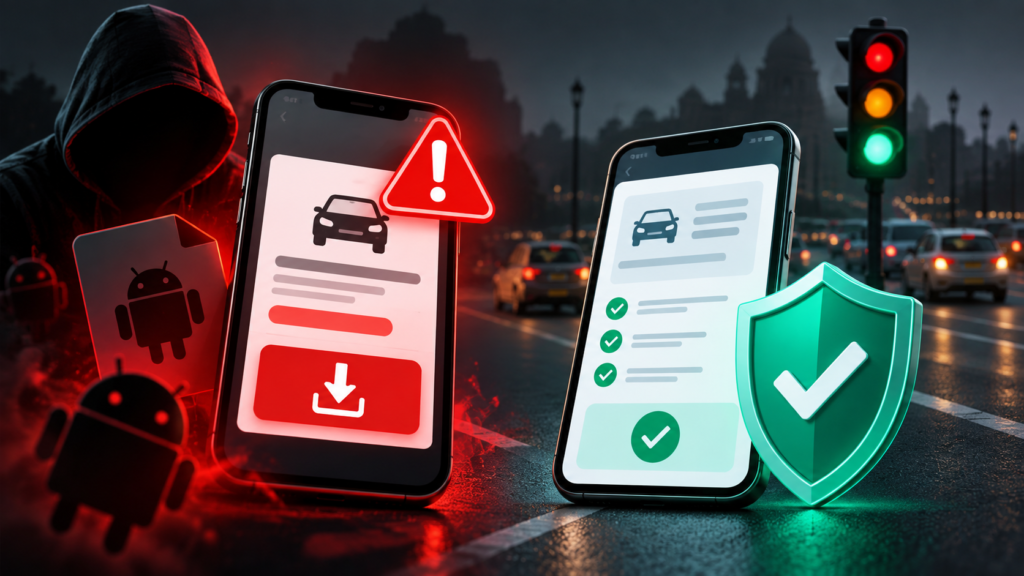
A traffic-fine message should send you to a verified government service, not persuade you to install an unfamiliar Android app. If an SMS or WhatsApp message asks you to download an APK to view a challan, stop and check the fine independently. The National Informatics Centre’s July 2026 guidance warns that unfamiliar APK links delivered through messages can expose personal and banking information. NIC cybersecurity guidance.
This guide explains the installation trap, the difference between receiving a message and installing software, and what to do at each stage. It is written for Indian vehicle owners and family members helping someone check a suspicious notice.
Why this scam deserves attention now
CERT-In issued an alert on 17 March 2026 about an Android malware campaign impersonating RTO and government e-challan notifications. Its indexed advisory identifies filenames such as RTO Challan.apk and MParivahan.apk. Indian Bank also published a detailed warning, updated in August 2026, describing fake challan messages that lead people to malicious app downloads. These establish an active public-safety concern; they do not establish how many people have encountered it this month. CERT-In campaign alert, Indian Bank warning.
The important question is practical: how can you check whether a fine exists without using the sender’s link?
How the installation trap works
The message presents a familiar administrative task: check a traffic violation, see photographic evidence, or clear a pending payment. The dangerous change comes when completing that task supposedly requires installing software from the message.
Indian Bank describes an impersonation sequence involving a traffic-police or government identity, an unpaid-fine claim, and an APK download. Its warning also highlights excessive permissions and urgent payment demands. Indian Bank’s description of the scam.
The following is an illustrative sequence, not a reconstruction of a particular victim’s experience:
| Stage | What the message asks you to believe | A safer decision |
|---|---|---|
| A notice arrives | The sender has official authority | Treat the claim as unverified |
| A deadline appears | You must act before checking | Open a government service independently |
| An app is offered | Installing it is necessary to see the fine | Decline the message attachment |
| Permissions are requested | Broad phone access is routine | Stop and examine what access is being requested |
| Payment details are requested | The app is a legitimate collection service | Confirm the record and payment route through the authority |
A logo, a vehicle number, or a plausible amount gives you a reason to investigate the notice. None establishes that the attached software is trustworthy. Judge the installation request separately from the information displayed around it.
Why Android permissions matter
Android allows apps to request access to particular phone features. Google’s documentation explains that SMS permission allows an app to send and check text messages, while contacts permission provides access to the contact list. You can inspect an app’s permissions in Settings → Apps → [app name] → Permissions; menu names vary across devices. Google’s app-permission guide.
That distinction helps explain the risk without exaggerating it. Receiving an attachment does not prove your phone is infected. Downloading a file, installing an app, granting access, and entering credentials are different events. When seeking help, describe precisely which happened.
For a fine-checking task, ask a simple question before allowing access: “Why would this task require access to my messages or contacts?” If the answer is unclear, stop rather than approving permissions to get past the screen.
How to check a challan independently
Start from the government eChallan portal or your state traffic authority’s verified website. The central portal identifies itself as a Ministry of Road Transport and Highways initiative and advises users to access the service through its official website or app. Government eChallan portal.
Use this verification routine:
- Close the suspicious message and open your browser separately.
- Type the official portal address yourself or use a bookmark you previously verified.
- Follow the portal’s own instructions to locate the record.
- Compare the vehicle, issuing authority, violation information, and payment status shown there.
- If the notice and official record disagree, contact the relevant authority using details found independently on its website.
An unavailable or missing record leaves a question to resolve. It is not a reason to install the sender’s app. Similarly, a genuine outstanding fine does not authenticate an unrelated message offering to collect it.
What to do if you interacted with the message
You received it or downloaded a file
Do not open or install the attachment to investigate it. Preserve the message if you intend to report it, then remove the unwanted download. NIC advises avoiding app installation from unknown APK links received through messaging channels. NIC’s APK safety advice.
You installed the suspicious app
Indian Bank recommends uninstalling a suspicious challan APK, changing banking passwords, and contacting the bank. Use a separate trusted device for sensitive account changes if you suspect the phone remains compromised. Tell the bank what you installed, what information you entered, and whether any transactions occurred. Indian Bank’s response guidance.
For a device check, open Google Play Store → profile icon → Play Protect. Google explains that Play Protect checks apps, including apps from other sources, and can warn about, disable, or remove harmful software. Keep its scanning enabled. A scan is a useful check; do not treat the absence of a warning as proof that no credentials or information were exposed. Google Play Protect documentation.
If you see unfamiliar Google Account activity, review security events, signed-in devices, and recovery information. Google’s compromised-account guide explains the recovery process and recommends changing exposed passwords and addressing unfamiliar account access. Google Account recovery guidance.
Money has moved without your permission
Contact your bank immediately through an independently verified number. Call 1930 and report the incident through the National Cyber Crime Reporting Portal. The Ministry of Home Affairs identifies 1930 as the helpline for immediate reporting of financial cyber fraud. MHA helpline explanation.
Have the transaction reference, time, amount, recipient details, and suspicious message ready if available. Record complaint acknowledgements. Prompt reporting is appropriate, but this article cannot promise that funds will be recovered.
A family verification exercise
Practise before a suspicious message arrives. Ask a family member to find the government portal without using a forwarded link. Then ask them to explain the difference between checking a fine and installing an app.
Use this sentence as a household rule: “We will check the fine independently before downloading software or paying.” Save the verified portal and your bank’s official support details where everyone can find them. Keep the practice focused on a repeatable action rather than memorising every possible scam message.
Glossary
| Term | Meaning in this guide |
|---|---|
| APK | An Android application installation package |
| Impersonation | Pretending to be a trusted organisation or person |
| Permission | Access an app is allowed to use on the phone |
| OTP | A one-time password used in an authentication or verification step |
| Independent verification | Checking through a trusted route you obtain separately from the message |
Key takeaways
- Check the fine through a verified government service before acting on a message.
- Distinguish receiving a file, installing software, granting access, and exposing credentials.
- Use bank support and official reporting routes promptly if money or account access is affected.
Continue with The Infosiast’s online safety guide for India and Google Account security guide.
Sources and editorial transparency
Sources appear beside the claims they support. Government advisories, bank guidance, and Android documentation serve different purposes: identifying the campaign, explaining response options, and describing device controls. CERT-In’s campaign date and filenames were available in its indexed search result; direct retrieval of that advisory failed during this research. No malware sample was installed or analysed for this article.
Written and prepared by Kshitij Gupta. Sources checked on 30 September 2026. Report corrections through The Infosiast contact page and include the passage, supporting source, and relevant device details. See the site’s editorial policy.