Use JPG for many finished photographs when a smaller file is useful. Use PNG when you need transparent areas or precise reproduction of text, diagrams, and interface graphics. The best choice depends on the image and its destination—not on a rule that one format always has better quality.
JPG and JPEG are filename extensions for the same commonly used image format. PNG is a different format with lossless compression and transparency support. This guide explains the practical trade-offs and gives you a repeatable export check. MDN’s image-format guide
The differences that affect your decision
| Property | Ordinary JPG/JPEG export | PNG export |
|---|---|---|
| Compression | Usually lossy | Lossless for the encoded image data |
| Transparent background | Not supported by ordinary JPEG | Supported |
| Detailed photographs | Often a practical delivery format | Can require more storage |
| Small text and sharp graphics | Compression can introduce visible artifacts | Preserves encoded pixels precisely |
| Best question before export | Is the quality acceptable at the intended size? | Do I need exact pixels or transparency? |
The comparison concerns everyday JPEG files, not every format in the wider JPEG standards family. The JPEG committee’s core standard also includes lossless coding options. JPEG committee’s JPEG 1 overview
Lossy and lossless describe compression, not image quality by themselves
Lossy compression reduces data by accepting changes to the reconstructed image. A high-quality JPEG can look suitable for its intended use even though it is not pixel-identical to the original.
PNG compression reconstructs the image samples stored in the file without compression loss. That does not undo an earlier blur, a poor crop, or a destructive edit. It preserves the image you encode; it does not recreate detail that has already disappeared. W3C’s PNG specification
Keep three decisions separate: pixel dimensions, compression, and image content. A tiny source image does not become detailed simply because it is saved as PNG. A large PNG is also not automatically more useful than a carefully exported JPEG.
When JPG is the practical choice
Consider JPEG for a finished photograph destined for an article, an email, or a platform that accepts it. Its compression often reduces photographic file sizes substantially. However, quality settings and image content influence both appearance and size. Adobe’s JPEG and PNG comparison
For a hypothetical article photograph, make two delivery exports at the same pixel dimensions. View both at their intended display size and inspect important details such as a face, a product label, or a smooth background. Pick the smaller version only if it still does the job.
Do not discard the editable source after making the delivery copy. It gives you a better starting point if the article later needs a new crop or layout.
When PNG is the practical choice
PNG is useful for a transparent logo, a chart with fine lines, or a screenshot with small interface text. Its alpha information can represent fully transparent and partly transparent pixels. W3C’s PNG specification
For a support screenshot, prioritize the text the recipient needs to read. For a logo, inspect the edges on both light and dark backgrounds. For a chart, check that labels and line styles remain distinguishable at the size readers will actually see.
PNG is not guaranteed to be larger than JPEG for every image. Compare the actual exports rather than multiplying the size by a supposed universal ratio. A format decision should preserve the information that matters while meeting the destination’s requirements.
Choose by the task
| Image and destination | Starting choice | What to inspect before sending |
|---|---|---|
| Photograph in a blog post | JPG; consider a modern web format too | Subject detail, artifacts, dimensions, file size |
| Transparent logo on a colored background | PNG, or SVG when suitable | Transparency and edge appearance |
| Screenshot for technical support | PNG | Readability and private information |
| Diagram with small labels | PNG, or SVG for a vector original | Labels at the final display size |
| Form that explicitly requests JPG | JPG | Accepted dimensions, background, and file limit |
| Editable artwork with layers | Original application format | Whether the source remains editable |
This is a practical decision worksheet, not a statement that each starting choice always wins. MDN discusses raster and vector formats; Adobe documents retaining Photoshop’s native format for editing. MDN, Adobe’s saving guide
What conversion can and cannot do
Changing a filename from .jpg to .png does not re-encode its contents. Use an editor’s export or save-as function to produce the required format.
When exporting a transparent PNG as ordinary JPEG, choose an appropriate background because JPEG does not support that transparency. When converting an existing JPEG to PNG, the new file preserves the decoded image; the conversion does not restore information discarded by the earlier compression. Adobe’s format comparison
Repeated editing and JPEG re-encoding can add loss. Keeping a separate master lets you make fresh delivery exports rather than repeatedly modifying a compressed delivery copy. Simply copying a JPEG file does not re-encode it. Adobe’s discussion of JPEG compression
Download note: Script, dataset, and result links below open a ZIP archive containing the named files. Extract the archive before running the example.
A measured export comparison
We ran two comparisons on 8 October 2026 using Python 3.14.7 and Pillow 12.3.0. Each pair uses the same 640 × 640 RGB pixels as its reference. JPEG settings were quality 80, 4:2:0 chroma subsampling, optimization off, and progressive encoding off. PNG used compression level 6 with optimization off. These numbers describe this encoder and these images, not a universal quality scale. Pillow’s format documentation
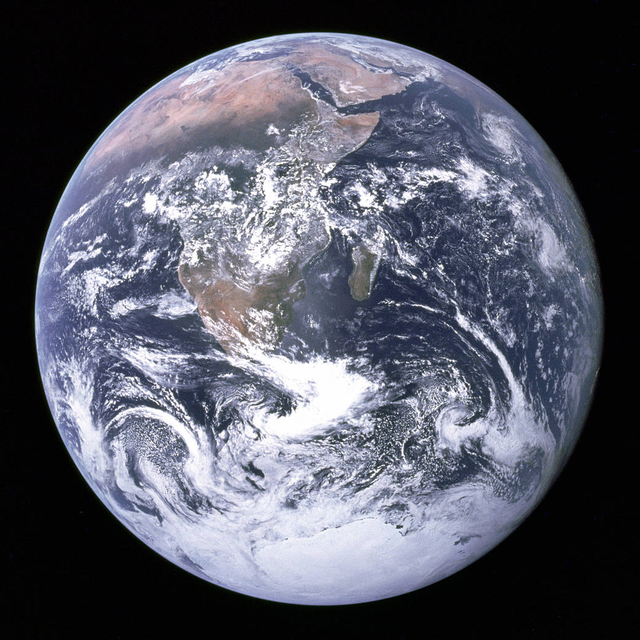
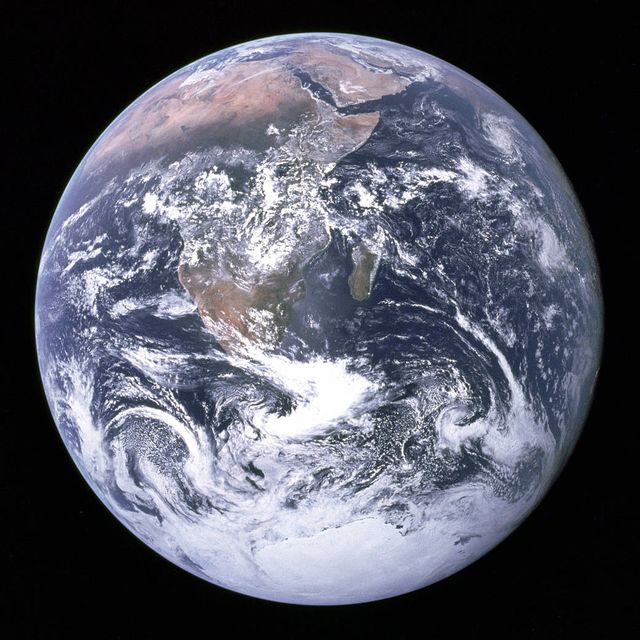
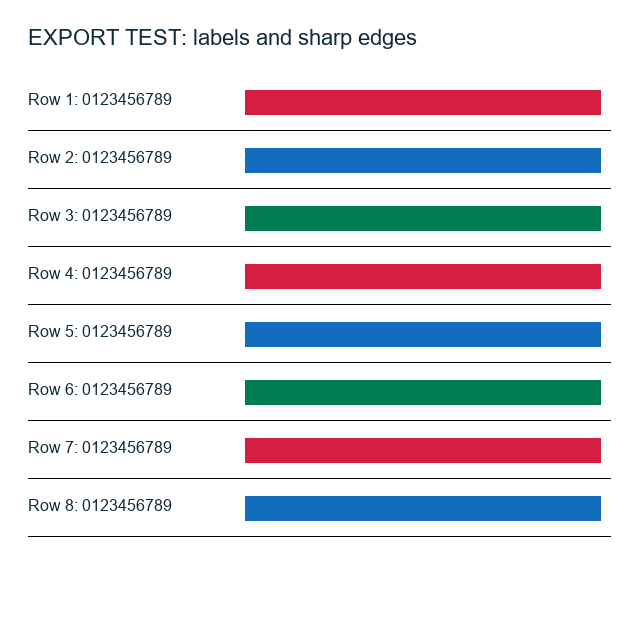
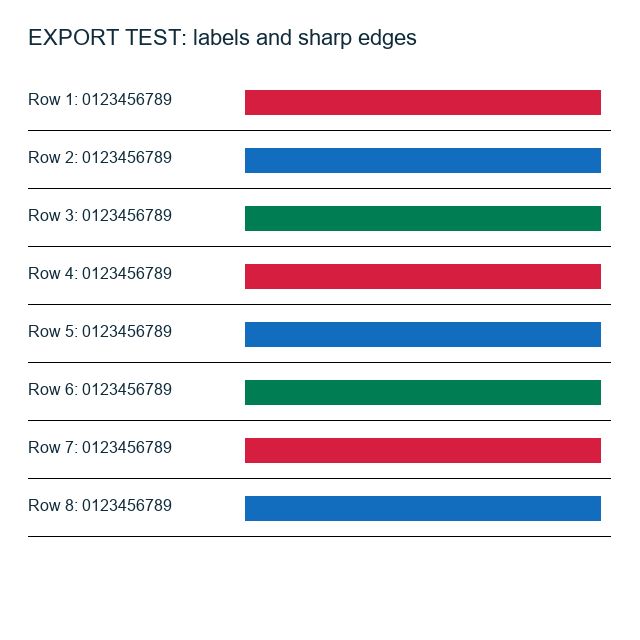
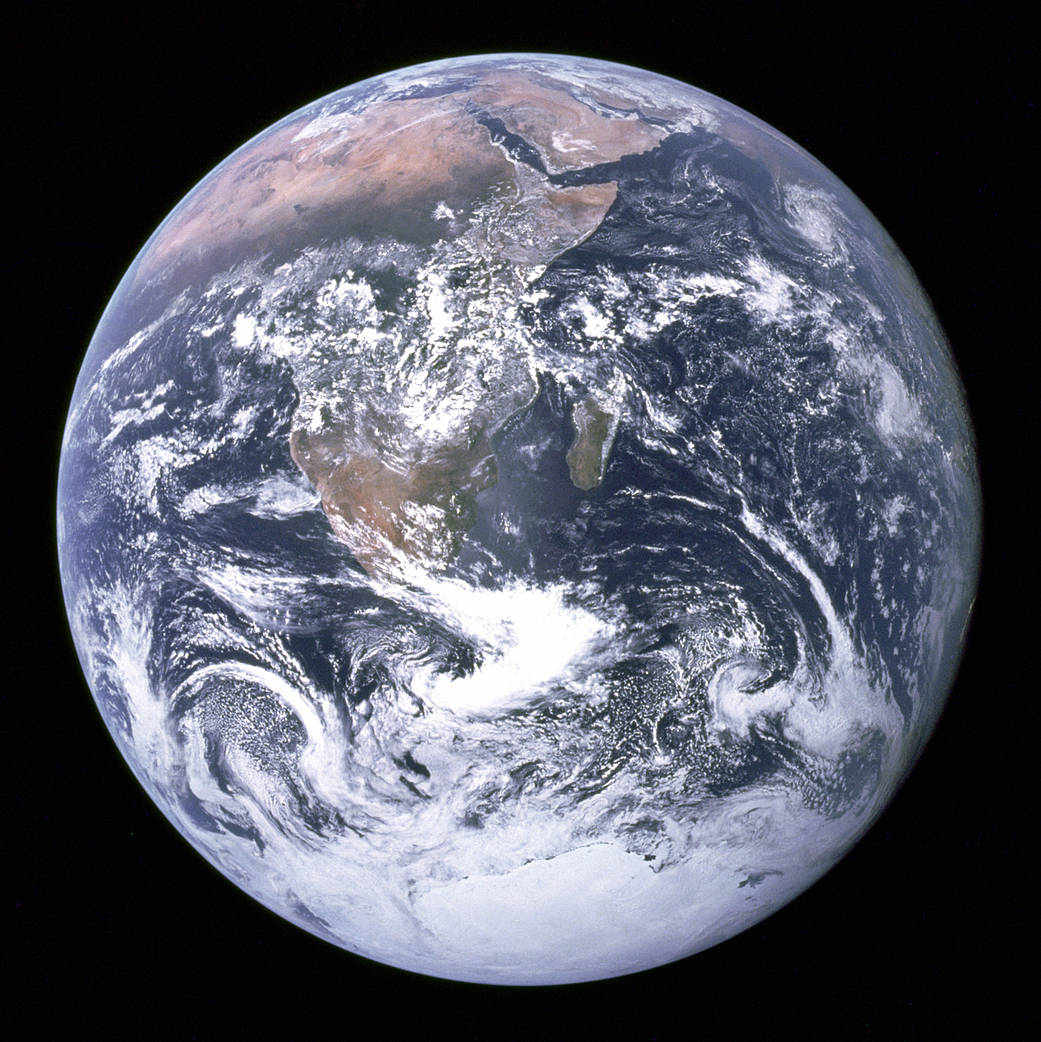
The photograph is NASA’s Apollo 17 Blue Marble image, resized once with Lanczos resampling. Its downloaded source was already JPEG, so saving that decoded source as PNG does not recover earlier compression loss. The graphic is an original label-and-line test image. Photograph source and credit: NASA
| Reference | PNG bytes | JPG bytes | Pixel comparison with reference |
|---|---|---|---|
| Blue Marble photograph | 649,780 | 88,923 | PNG identical; JPG different |
| Text and colored-line graphic | 32,422 | 48,947 | PNG identical; JPG different |
JPEG is smaller for this photograph; PNG is smaller for this graphic. That second result is why “PNG is always larger” is a poor rule. Pixel difference confirms loss; it does not, by itself, measure whether that loss matters to a reader.
Inspect the same details in both exports
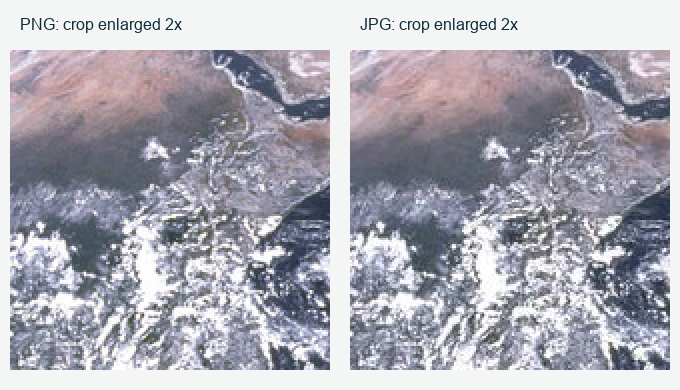
Photograph detail, PNG on the left and JPEG on the right. Image credit: NASA. Matching 160 × 160 crops enlarged 2× with nearest-neighbor scaling.
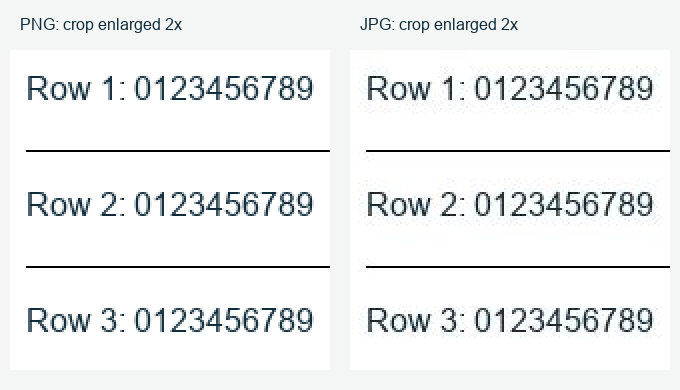
Original graphic detail using the same crop-and-enlargement method. Open the downloads at 100% for a direct pixel inspection; a browser may scale this comparison figure.
Download the photo PNG, photo JPG, graphic PNG, and graphic JPG. The experiment script, original NASA source, and settings, hashes, and results make the procedure reproducible. Keep the script and source in the same folder; the script requires Pillow and uses Windows Arial for its generated graphic. Different font or encoder versions can change the byte counts.
Check transparency on two backgrounds
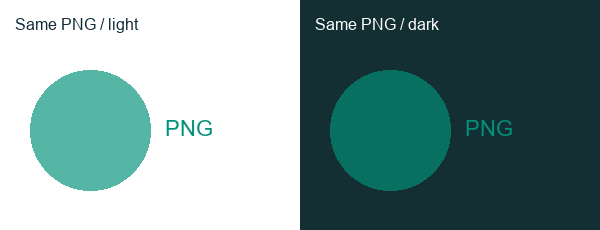
The same RGBA PNG appears on both backgrounds. Its translucent circle blends differently with each background. Ordinary JPEG export requires choosing a background and flattening the image.
Repeat the comparison in Photoshop
For Photoshop desktop’s documented Export As workflow:
- Preserve the editable master and open a copy for delivery.
- Choose File → Export → Export As.
- Select JPG, set the intended width and height, and record the displayed quality setting. Export a new file.
- Export again as PNG at exactly the same dimensions. For a transparency test, retain transparency and avoid reducing the PNG to a smaller palette when you intend to compare full-color pixels.
- Compare byte sizes, labels, edges, and subject detail at 100% and at the intended display size. Record color-space and metadata options as well.
Adobe documents the format and export controls. This is a documentation-based workflow, not a claim that the Pillow test used Photoshop. Quality 80 in Pillow is not necessarily equivalent to Photoshop’s quality setting. Adobe’s Export As guide
If the destination compresses an upload again, inspect its delivered copy too. The local test does not predict every publishing platform’s result.
PNG does not automatically remove private information
A format change is not a privacy check. PNG can contain textual information and an Exif metadata profile; the current specification explicitly defines these facilities. Do not assume that converting a photograph to PNG removes location or other embedded metadata. W3C’s PNG metadata specification
Before sharing, inspect both metadata and visible content. Crop account identifiers from screenshots, check browser tabs and notifications, and use a trusted tool’s metadata controls when appropriate. Reopen the exported file to confirm what remains. Be cautious with online conversion services when the image contains private records.
Where WebP, AVIF, and SVG fit
For websites, the choice extends beyond JPEG and PNG. WebP supports lossy and lossless compression, transparency, and animation. Compare actual exports and confirm support in your publishing workflow rather than assuming a fixed saving for every file. Google’s WebP documentation
MDN also describes AVIF and SVG. SVG is a vector format, useful for suitable diagrams and icons that need to scale. A photograph converted into a file bearing an SVG extension does not automatically become editable vector artwork. MDN’s format guide
For a website article, retain a usable source, export a suitable delivery size, and inspect what the content-management system actually serves. An efficient format cannot compensate for illegible labels or an unsuitable crop.
Glossary
| Term | Meaning |
|---|---|
| Raster image | An image represented by a grid of pixels |
| Lossy compression | Compression that accepts changes to reconstructed image data |
| Lossless compression | Compression that reconstructs the encoded data exactly |
| Alpha | Information describing pixel transparency |
| Pixel dimensions | The image’s width and height in pixels |
Key takeaways
Start with JPG for many finished photos and PNG for transparency or precise graphics. Preserve the source, compare exports at equal dimensions, and inspect the file where it will be used. Treat privacy and metadata as separate checks.
For sharing decisions, read our data-privacy guide.
Editorial note: Standards and vendor documentation checked on 8 October 2026. The downloadable two-image experiment was measured locally; its results apply only to the documented sources, dimensions, and encoder settings. This guide concerns common still-image workflows. See our Editorial Policy and contact us with corrections.
About the editor: Kshitij Gupta is a digital marketing specialist whose profile lists experience in SEO, copywriting, and blogging. He prepares these guides for a general audience using the technical sources linked in each article.
Written and prepared by Kshitij Gupta.