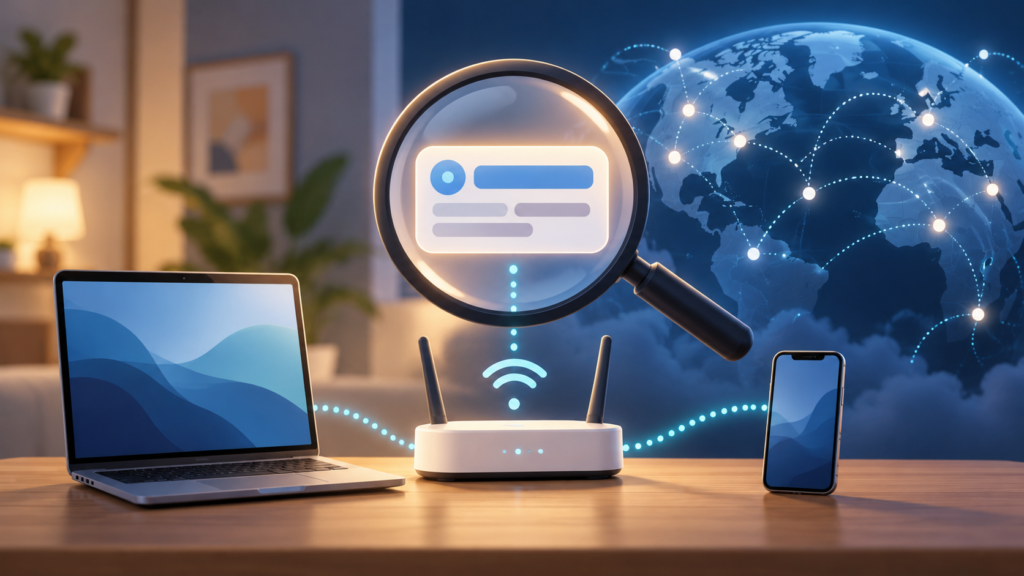
To find the IP address a website sees, open a trusted public-IP checker on the device and connection you want to inspect. To find the address your device uses on its local network, open its network settings. These checks often produce different answers because they describe different parts of the connection.
An IP address helps route network traffic. It is not, by itself, your name, a password, or a reliable map pin for your home. This guide explains which address to look for, where to find it, and how to interpret conflicting results. Cloudflare’s IP-address overview
Quick check: For the address a website sees, open WhatIsMyIP.com and read the public IPv4/IPv6 fields. For a printer or local device, use your active connection’s IP address field in Settings. Do not copy the router, subnet mask, or MAC address instead.
Decide which IP address you need
| Your task | Address to inspect | Starting point |
|---|---|---|
| Check what a website sees | Public address for that connection | A trusted public-IP checker |
| Connect to a printer or another local device | Address on your local network | Device network settings |
| Give support a useful connection report | The address support requests, with context | Ask whether it needs the public or local address |
| Check a browser’s VPN route | Public address seen by the checker | Compare results with the VPN connected and disconnected |
Public and private are not synonyms for safe and unsafe. Private IPv4 addresses belong to ranges reserved for internal networks and are not globally routed as public destinations. Different networks can reuse the same private address. RFC 1918
Find your public IP address
Open WhatIsMyIP.com and read the fields labeled Your IP Address (IPv4) and Your IP Address (IPv6). The page displayed the browser connection’s IPv4 address when checked on 8 October 2026, without an account or installation. Cloudflare’s linked page is background reading, not the checker used here. This is a functional check, not an endorsement of the site’s advertising or privacy claims. A checker observes the source address of the request reaching its service. If your browser uses a VPN, proxy, or relay, the result may represent that service’s exit rather than your ordinary connection.
For a useful record, note:
- The date and time.
- Whether you were using Wi-Fi, Ethernet, or mobile data.
- Whether a VPN, proxy, or browser relay was active.
- Whether the result was labeled IPv4 or IPv6.
An ordinary IP lookup should not require installing an app, buying a subscription, or entering an account password. The result describes the connection used for that lookup; it does not establish the route of every application on the device.
Find your local IP address on Windows
In Windows 11:
- Open Settings → Network & internet.
- For Wi-Fi, select Wi-Fi and the connected network. For a wired connection, select Ethernet.
- Find IPv4 address in the connection properties.
Microsoft also documents a Properties shortcut near the active connection. Use the adapter actually carrying your traffic. Microsoft’s network-settings guide
For a text report, open Command Prompt and run:
ipconfig
The command displays adapter information. Look for the connected Wi-Fi or Ethernet adapter rather than a disconnected or virtual adapter. A VPN can add another adapter, so several addresses are not automatically a fault. Microsoft’s ipconfig reference
Find your local IP address on a Mac
Open Apple menu → System Settings → Network, select the active network service, then open Details → TCP/IP. Inspect its IPv4 or IPv6 information without changing the configuration. Apple notes that available settings vary by network service. Apple’s TCP/IP guide
If Wi-Fi and Ethernet are both active, inspect the relevant service. Do not assume that a value from one interface describes a request sent through the other.
Find your address on a phone
On iPhone, open Settings → Wi-Fi, then the information button beside the connected network and look for its IP-address information. On iPad, use the same Wi-Fi information entry point; Apple’s separate iPad guide documents opening a network’s details. iPhone guide, iPad guide
On a Google Pixel, begin at Settings → Network & internet → Internet, then open the settings beside the connected Wi-Fi network. Look for the IP address field in its details. Google’s guide documents this entry point and notes that some steps require Android 11 or later; it does not establish an identical field layout on every release. Pixel Wi-Fi guide, advanced network settings
On a Samsung Galaxy, begin at Settings → Connections → Wi-Fi and open the settings beside the connected network. Expand additional details if your version collapses them, and read IP address. Samsung documents the Wi-Fi settings entry point, but layouts vary across Galaxy models and software versions. Samsung connection guide
These are documentation-based starting paths checked on 8 October 2026, not hands-on tests of named Android or One UI builds. If the field is absent, record your device model and software version and consult its matching manual. Do not switch DHCP to static just to reveal an address; that changes configuration.
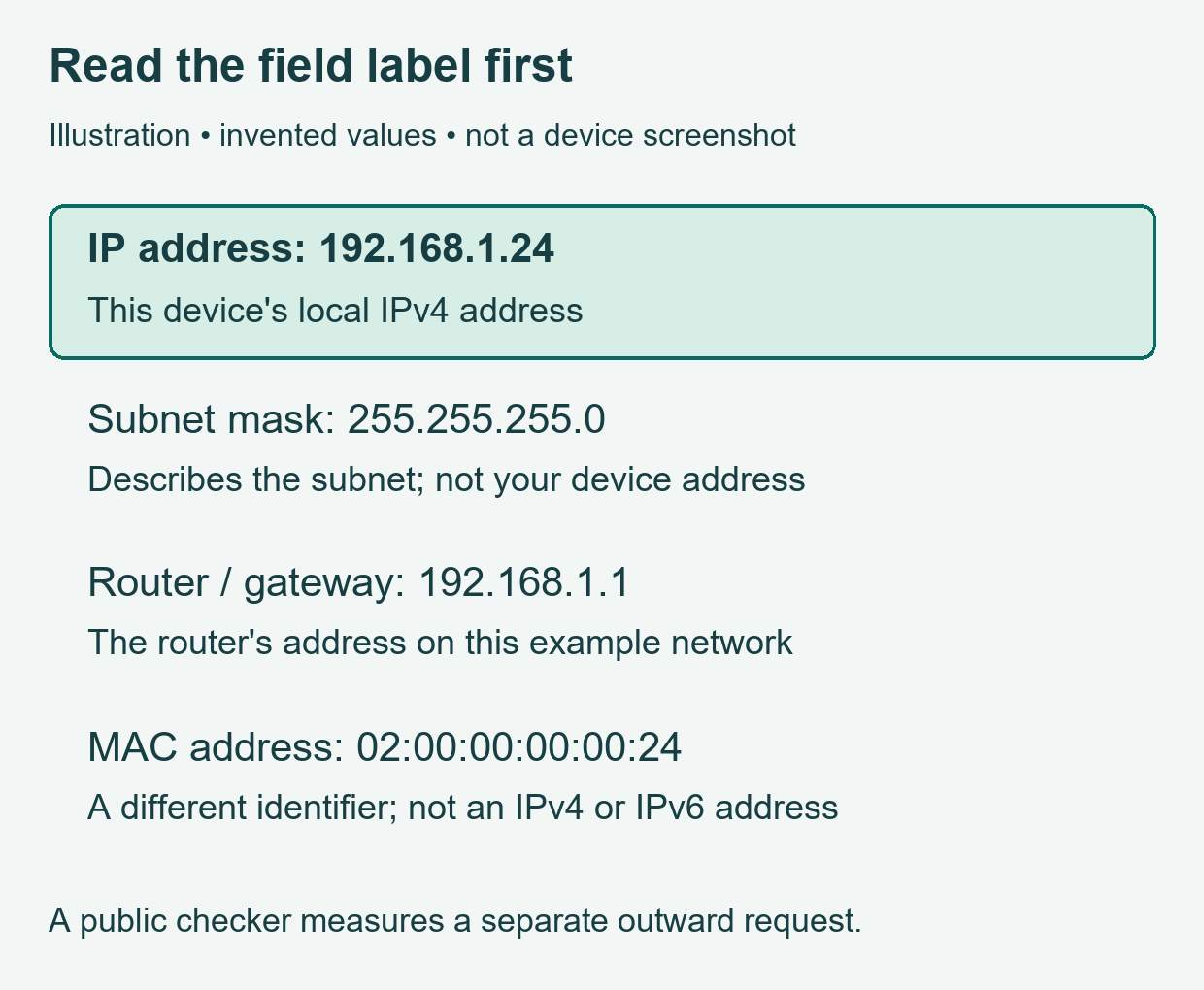
Illustration, not a phone screenshot. All values are invented. “Private Wi-Fi address” on Apple devices refers to a MAC-address privacy feature, not necessarily the local IP field.
The Wi-Fi network screen describes that network. For a mobile-data test, use the checker while connected through mobile data and record that context separately.
Why the numbers may disagree
Imagine a hypothetical home network:
| Place you look | Illustrative value | Interpretation |
|---|---|---|
| Laptop’s Wi-Fi settings | 192.168.1.24 | Laptop’s private IPv4 address on this network |
| Printer’s network settings | 192.168.1.50 | Printer’s private IPv4 address on the same example network |
| Public-IP checker | 203.0.113.18 | Example of an outward-facing IPv4 address |
The first two values are private examples. The third belongs to a range reserved for documentation and is not a real address to use in your settings. RFC 1918, RFC 5737
A home router can translate private IPv4 connections through a public address using network address translation, or NAT. Some providers also share outward-facing IPv4 addresses across customers. IPv6 can use a different addressing arrangement, so the familiar “one home, one public IPv4” picture is not a universal rule. RFC 3022 on NAT, RFC 6598 on shared address space
Before treating disagreement as an error, check the connection type, address family, and any active intermediary. Record both values and their labels rather than picking whichever looks more familiar.
IPv4, IPv6, and changing addresses
An IPv4 address uses four decimal groups, such as 192.168.1.24. IPv6 uses a longer hexadecimal notation, often shortened with double colons. A device can have both, and different requests can use different address families.
Dynamic addresses can change as network assignments change. Static addresses are configured to remain consistent under the relevant arrangement. Switching networks can also change the outward address a service observes. Cloudflare’s explanation of address types
If an online service uses an IP allowlist, a changed address can affect access. Give its administrator the requested address and connection context instead of guessing a replacement network configuration.
What an IP lookup reveals about location
IP-location services use databases and inference. Their results can identify a network operator or estimate a region, but a displayed city is not proof of a person’s exact location. RIPE’s documentation explains that geolocation data can be supplied by resource holders and may not be adopted consistently by lookup providers. RIPE’s geolocation guidance
If a service displays the wrong city, first record the result and provider. For a persistent problem, contact your internet provider or the lookup service through its official support channel. A map disagreement alone does not demonstrate an account compromise.
A useful support report
Instead of sending an unexplained number, prepare a short report:
At [time], on [device and operating system], I used [connection type]. The public checker showed [address and IPv4/IPv6 label]. My active network interface showed [local address]. The VPN or relay was [on/off]. The affected service displayed [exact error].
Share it privately with verified support when requested. Crop unrelated details from screenshots. Avoid posting complete router pages or connection reports in public forums.
Glossary
| Term | Meaning |
|---|---|
| Public IP | An address used for communication across the public internet |
| Private IPv4 | An address reserved for use within private networks |
| NAT | Translation between address spaces, commonly used in IPv4 networks |
| Network interface | A device’s connection point, such as Wi-Fi or Ethernet |
Key takeaways
Use a public checker for the address a website sees and network settings for the device’s local address. Keep the connection context with the result. Multiple addresses and imperfect location estimates are reasons to investigate carefully, not conclusions about a fault.
For the privacy side of the topic, read our VPN guide and practical data-privacy guide.
Editorial note: Technical references checked on 8 October 2026. Device instructions are documentation-based; menu names can change, and no hands-on verification across every device is claimed. All addresses in the worked example are illustrative. See our Editorial Policy and contact us with corrections.
About the editor: Kshitij Gupta is a digital marketing specialist whose profile lists experience in SEO, copywriting, and blogging. He prepares these guides for a general audience using the technical sources linked in each article.
Written and prepared by Kshitij Gupta.